Hydrate for Dropbox
1.2.0.6Pull Dropbox online-only files down to disk before you publish, sync, or build previews. macOS only.
Download 1.2.0.6 66 KB · 2026-09-06 Changelog
Requirements
- macOS only
- Lightroom Classic, SDK 6.0 or later (tested on 15.5.1)
- Dropbox running and signed in, using the legacy sync engine
- No permissions needed - no Accessibility, no Full Disk Access
The problem
An online-only Dropbox file is a 0-byte placeholder. Lightroom sees 0 bytes and marks the photo missing rather than opening it, so Dropbox never receives a read that would trigger a download. If your portfolio is a smart collection scattered across a year/month/day tree, per-folder selective sync doesn't help either.
It shows up in two places.
Not for Dropbox's File Provider engine — and if you're on it, you don't need this. Dropbox offers a newer macOS sync engine called File Provider. There, Lightroom fetches online-only files by itself: opening one in Loupe, Develop or Export pulls it down on demand, so none of the problems below happen. This plugin is for the older sync engine, where an online-only file is 0 bytes on disk and Lightroom reports it missing instead of opening it.
Not sure which you have? Run
Diagnose Hydration…— it says which engine you're on. The plugin also refuses to run on File Provider and tells you why, rather than pretending to work. It's free for 90 days and the clock doesn't start until files are actually hydrated, so finding out costs nothing.
In the Library: photos that won't render
Grey boxes where the photograph should be, with a warning badge in the corner. Nothing is wrong with the file — Lightroom simply cannot read a placeholder.
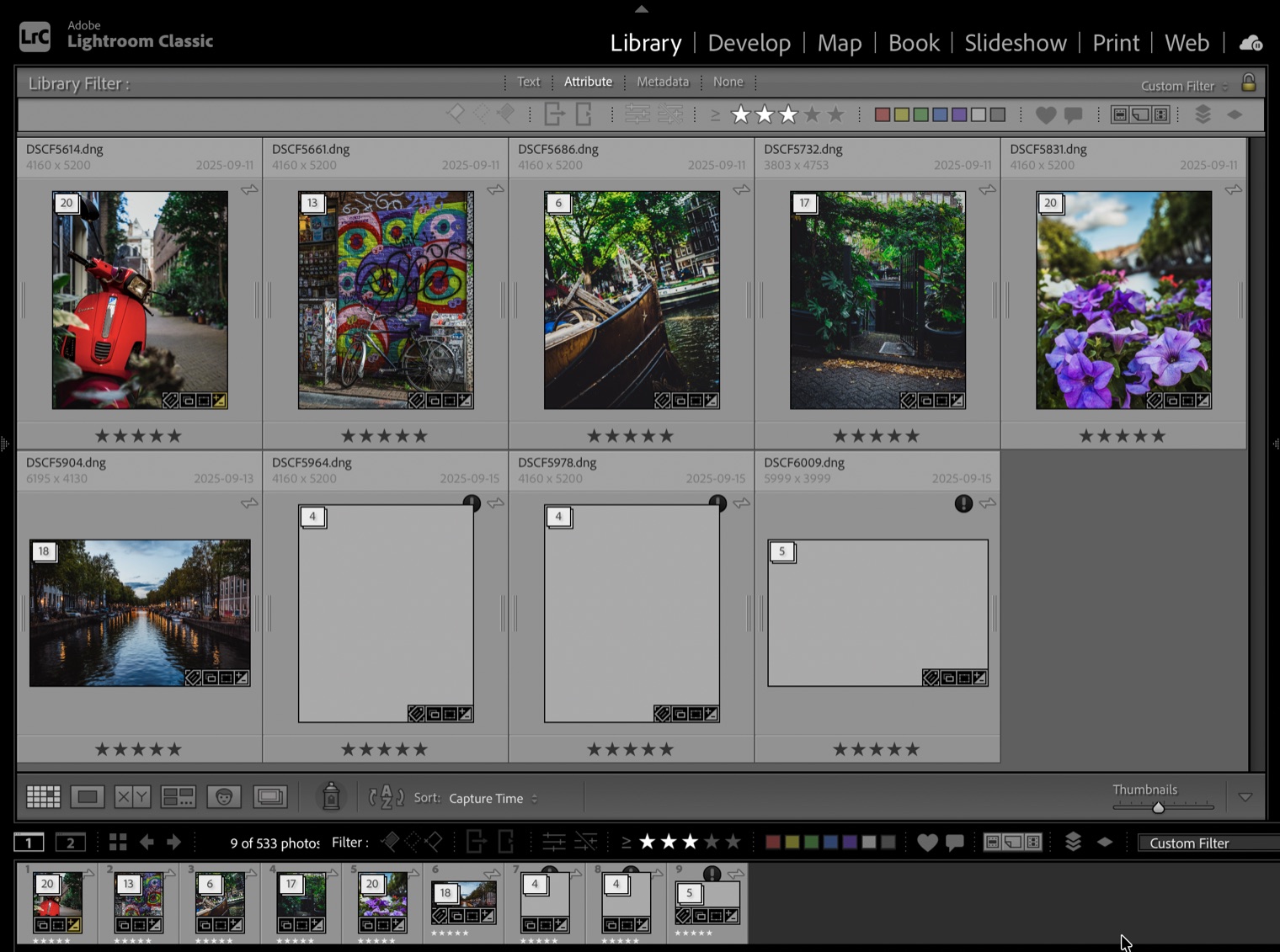
Syncing to Lightroom mobile is the awkward one. It does tell you a photo failed — by handing you this:
https://lightroom.adobe.com/libraries/<id>/albums/<id>/assets/<id>?panel=organize&tab=photosA link to the cloud copy that isn't there. No filename, no path, nothing you can act on.
You don't have to reconcile it. That is the wrong question, and it has no good answer — you'd be opening the link in a browser to read a filename Lightroom already knew locally and chose not to show you. The right question is "which files in this collection aren't on disk", and that one has a local answer. Hydrate the collection and the sync failure stops existing.
On publish: exports that silently don't happen
Worse, because you may not be watching. Lightroom reports the originals as missing or corrupt and skips them — the publish "succeeds" with photos quietly left behind.
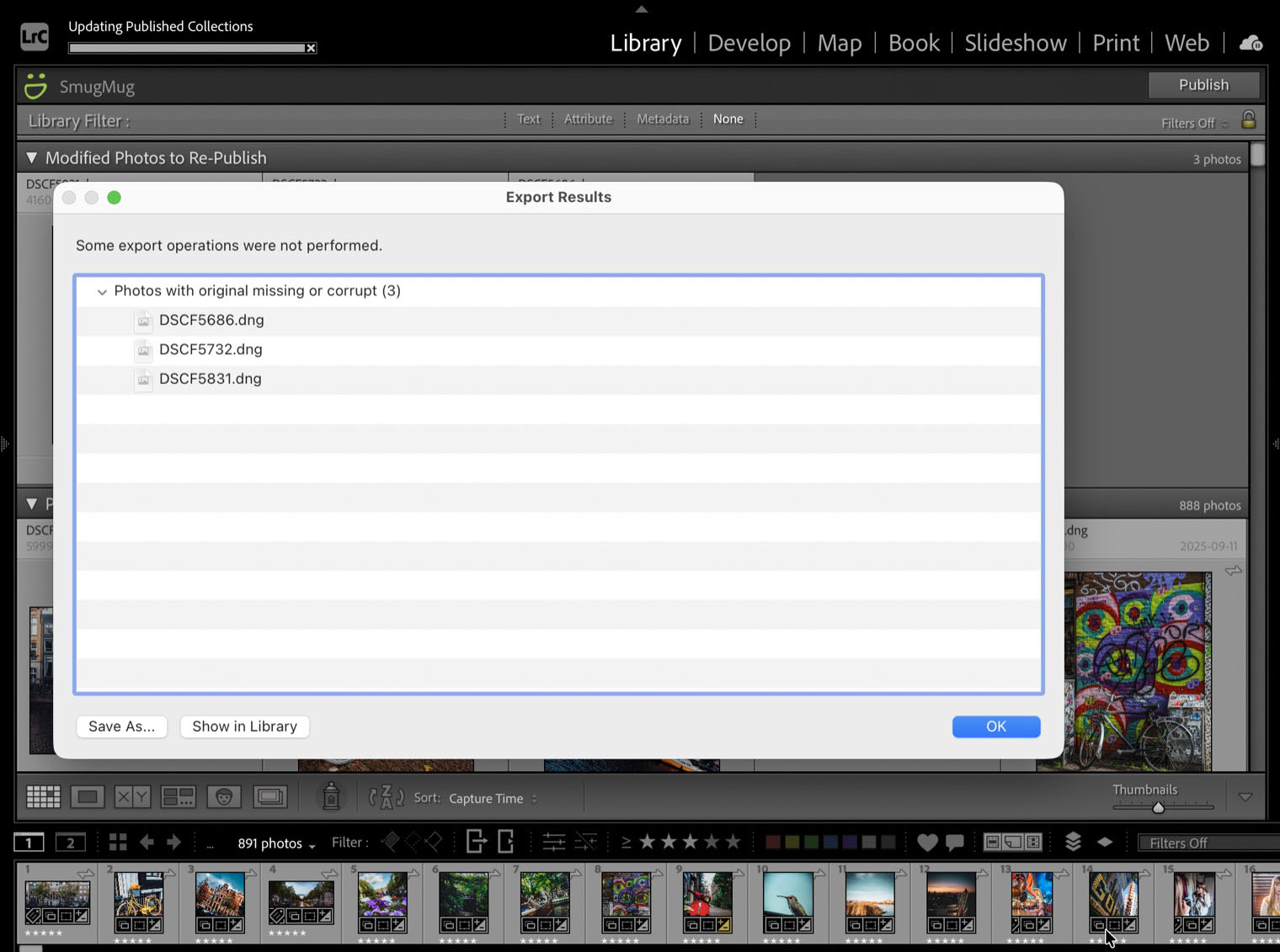
Smart Previews don't save you here: they cap exports at 2560px, so a full-resolution publish still needs the real originals on disk.
The fix
A coordinated read — the same mechanism an app uses when it opens a file, which is why opening a placeholder in Preview pulls it down while cat does not. It needs no permissions and touches nothing on screen.
Install
unzip PrZ3HydrateDropbox-*.zip
mv PrZ3HydrateDropbox.lrplugin ~/Library/Application\ Support/Adobe/Lightroom/Modules/
Then restart Lightroom, or File → Plug-in Manager → Reload.
From a checkout instead:
./install.sh              # same destination
./install.sh --uninstall
Re-running is safe; it backs the previous copy up to ~/Library/Application Support/PrZ3HydrateDropbox/backups (last 3 kept).
Permissions
None. Hydration uses a coordinated read — no Accessibility permission, no Finder window, no Spotlight, and no application is ever launched.
Updating
File → Plug-in Manager → PrZ3 - Hydrate for Dropbox → Updates → Check for Updates. It reads the published release, backs up the current copy, and verifies the download before replacing anything. Reload the plugin afterwards.
No GitHub account or tooling required — the download channel is public.
Commands
Hydrate Selected Photos — what you highlighted. Refuses to run with nothing selected, because getTargetPhotos() silently returns the entire filmstrip in that case.
Hydrate Entire Collection or Folder — ignores the selection, takes the left panel. Smart collections, publish collections, collection sets, folders.
Diagnose Hydration… — runs one file through nine checks and shows what actually happened. Start here when something goes wrong.
Both hydration commands confirm before downloading, with a real size estimate pulled from the catalog (the placeholders on disk claim 0 bytes and can't tell you). Progress bar with working cancel, and it gives up after 10 minutes of no movement rather than spinning forever.
Nothing is reported as downloaded until the file is verified on disk. A failure says so, with a reason.
What a run looks like
Nothing visible. No Finder windows, no menus, focus untouched. Measured in real use at ~70 files in about 90 seconds; the wait is Dropbox pulling the bytes, not the plugin.
The plugin still confirms before downloading, shows a progress bar with working cancel, and verifies every file actually arrived before reporting success.
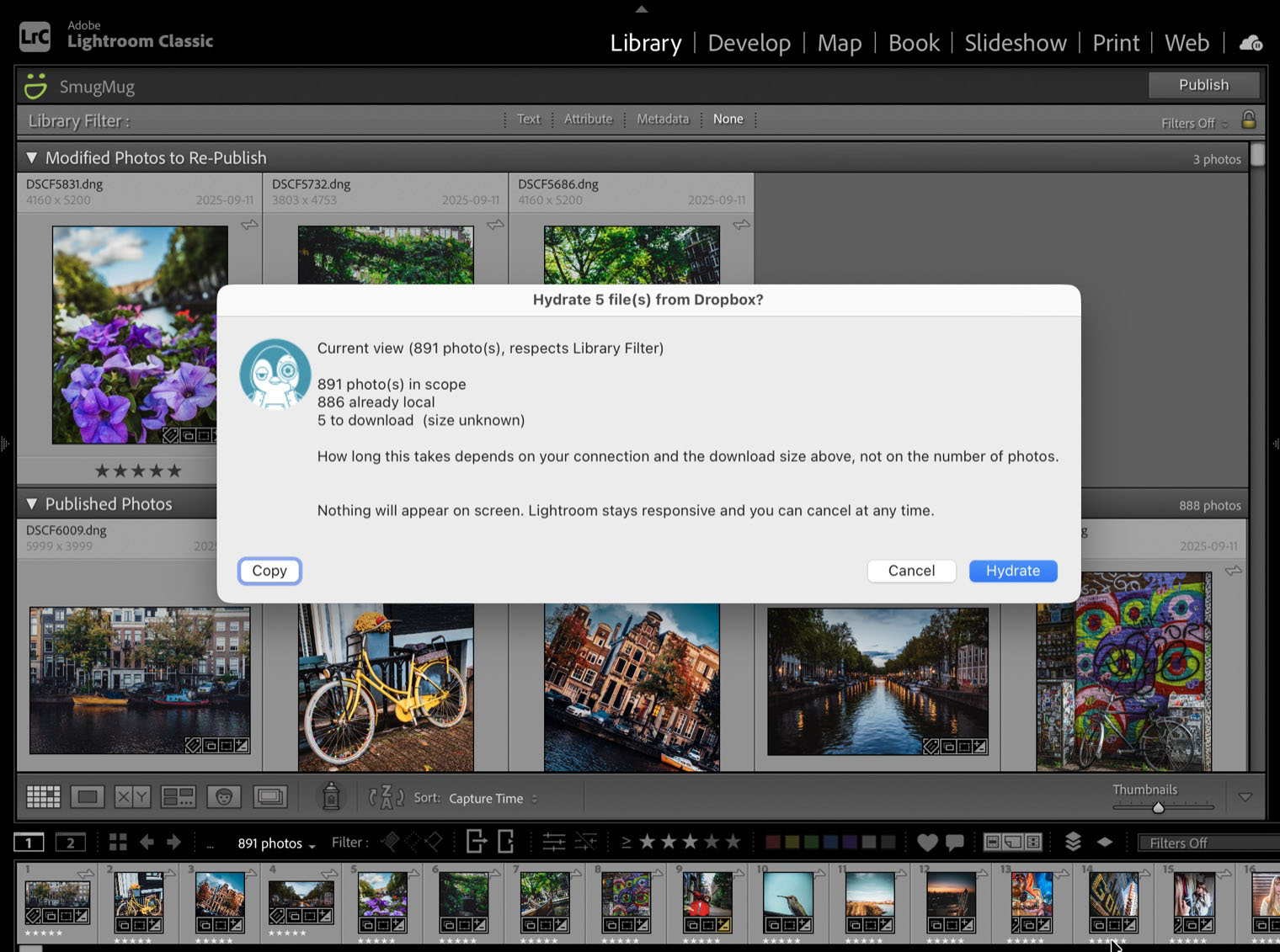
The dialog tells you what it is about to do before it does it — how many files are already local, how many need downloading, and that nothing will appear on screen. Then the publish goes through:
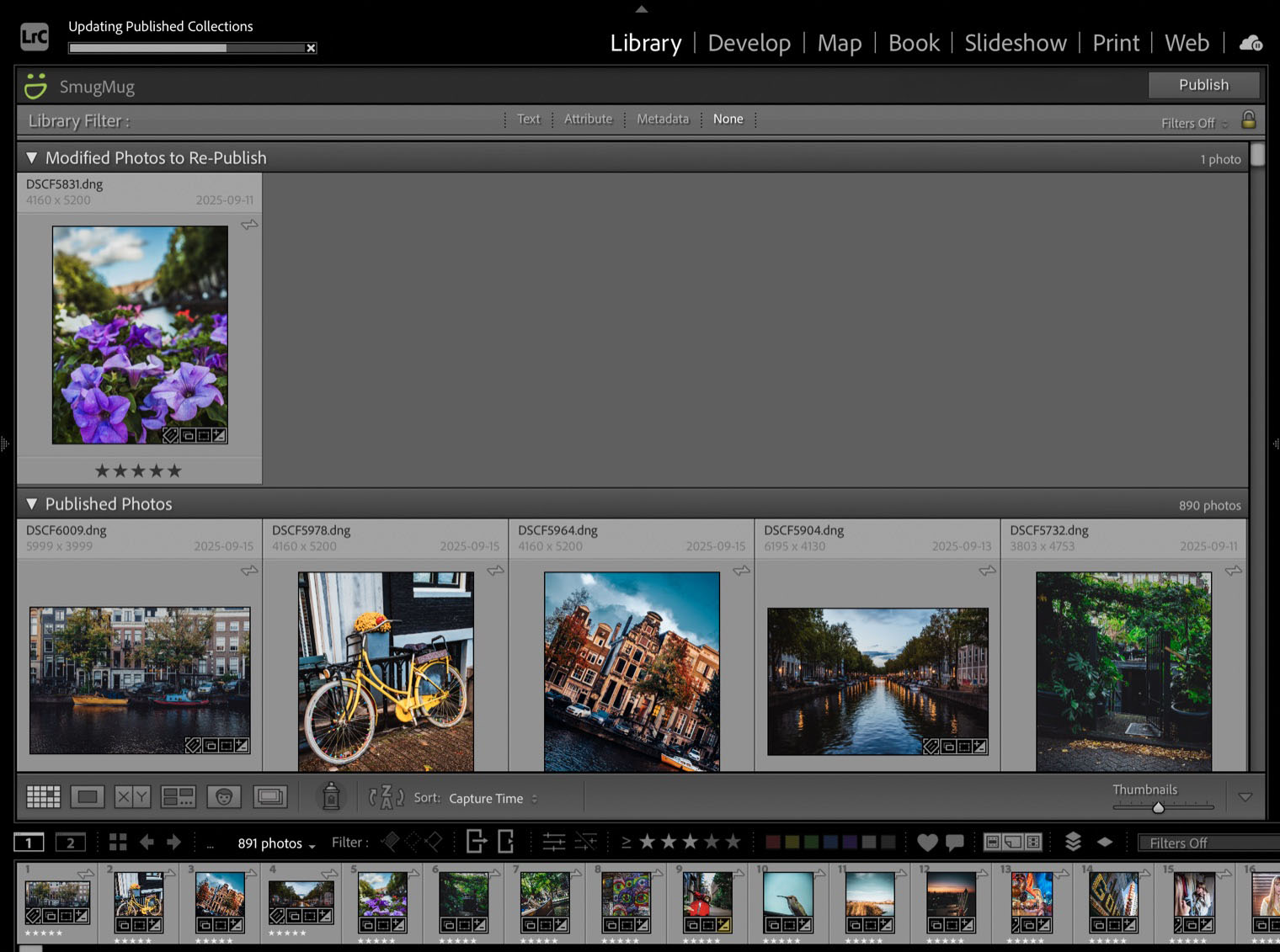
What you wait for is Dropbox pulling the bytes over your connection, so it scales with download size, not with how many files or folders are involved. A hundred RAW files is gigabytes; a hundred JPEGs is not. The confirm dialog shows the total size before you commit.
Order matters
Publishing to SmugMug: click the publish collection → Hydrate Entire Collection → wait for it to finish → Publish.
Re-syncing a smart collection to the cloud: click the collection → Hydrate → let Lightroom build Smart Previews → then start the sync. In the other order Lightroom hits zero-byte placeholders and flags half the collection as missing.
You can keep working while it runs. Nothing appears on screen, focus stays where it is, no application is launched, and the run can be cancelled at any time.
Finding the photos a run could not deal with
Two kinds of photo come back from a run needing attention, and a count alone doesn't help you find either one in a smart collection spread across a year/month/day tree:
- Missing from disk — moved, renamed or deleted outside Lightroom. There is no placeholder to fill, so hydration can't help.
- Failed to hydrate — on disk, still online-only. Dropbox didn't deliver the bytes; check it's running and signed in, then run again.
The plugin offers to gather each set into a ⚠️ Missing from disk or ☁️ Hydration failed collection, so you can work through them.
They keep themselves current. On a later run, any photo that turned out fine is removed, and a collection with nothing left in it is deleted — so what is in there is what is wrong now, not a list of things you already fixed. Each photo is checked directly, so a run over one folder still clears a photo you fixed in another.
It always asks first, touches nothing but those two collections, and deleting one by hand is always safe — it changes nothing about the photos.
Cancelling a run does not fill the failed collection. Cancelling marks every remaining file as failed internally, and collecting those would hand you a collection of everything you chose not to download.
When a run reports errors, the dialog also has Open Log and Show in Finder buttons — every file is listed as OK or FAIL with a reason.
One log is kept per run, not overwritten, so you can compare a run against the one before it. The last 25 are kept, in
~/Library/Application Support/Adobe/Lightroom/PrZ3HydrateDropbox/runs/Plug-in Manager → Last Run has the same buttons plus Copy to Desktop. Dialog text is selectable and every dialog has a Copy button, so an error can be pasted into a bug report as-is.
Keyboard shortcuts
Lightroom has no way for a plugin to add a toolbar button, so a keyboard shortcut is how you run a command without opening a menu.
Easiest: File → Plug-in Manager → PrZ3 - Hydrate for Dropbox → Keyboard Shortcuts. Tick the modifiers, type a key, press Apply. Restart Lightroom afterwards — menus read their shortcuts when they are built.
Lightroom already uses most single letters and many plain combinations. A collision simply does nothing, with no error, so try another if a shortcut doesn't fire. Control-Option combinations are usually safe, but check the letter isn't already doing something: J, for instance, is Grid View Style.
By hand, if you prefer: System Settings → Keyboard → Keyboard Shortcuts → App Shortcuts → +, Application Adobe Lightroom Classic, and the Menu Title typed exactly — including three leading spaces:
Hydrate Selected Photos
Hydrate Entire Collection or Folder
Diagnose Hydration...
Those spaces are not a typo. Lightroom prints a non-selectable header with the plugin's name under Plug-in Extras and indents each of its items beneath it, so the actual menu title is Hydrate Selected Photos — 26 characters, not 23. macOS binds by title, so without the indent the shortcut matches nothing: it appears in System Settings and never fires.
Three periods in Diagnose Hydration..., not a typed ellipsis, and no trailing space.
Licence
$9.99, one-off. Free and unlimited for 90 days first — after that the plugin keeps working, but each run hydrates up to 10 files instead of the whole selection.
The 90 days start the first time files are actually hydrated, not when you install. If it turns out your Dropbox is on the wrong sync engine, or you never get round to trying it, you haven't spent any of the trial.
Nothing is disabled, nothing expires, and your photos are never touched. Large collections just have to be done in batches until a licence is entered — which is exactly when the plugin is saving you the most time, so that is the moment it asks.
Check before you buy
Install it and open File → Plug-in Manager first. The panel's top line says which Dropbox sync engine you're on. If it says File Provider, don't buy — Lightroom already fetches your online-only files by itself and this plugin has nothing to do. The plugin will tell you that rather than take the money.
Buy at prz3.gumroad.com. Your key arrives by email; enter it in File → Plug-in Manager → PrZ3 - Hydrate for Dropbox → Licence.
Known limits
- Pulls files back; never changes your Dropbox settings. It does not pin, unpin, or alter selective sync — if you have Dropbox set to offload files to save space, that stays exactly as you configured it. Run the command again whenever you need those files local.
- Dropbox must be running and signed in. If it isn't, files stay online-only and are reported as failures — never silently skipped.
- If nothing progresses for 10 minutes it stops, rather than hanging, and tells you to check that Dropbox is running.
- 5000 files per run. A guardrail against having the whole filmstrip selected by accident; narrow the selection and run again.
- Photos genuinely missing from disk are skipped — there is no placeholder to fill, so hydration can't help. They're collected so you can find them.
- macOS only, and Dropbox's older sync engine only — not File Provider. See the note above; on File Provider you don't need this.
- Dropbox's File Provider engine requires the Dropbox folder to live under
~/Library/CloudStorage/. If yours is elsewhere — an external drive, or a location everything else already references — you're on the older engine, and likely to stay there.
$9.99 USD, one-off · Free and unlimited for 90 days, then 10 files per run until licensed.